
| 일 | 월 | 화 | 수 | 목 | 금 | 토 |
|---|---|---|---|---|---|---|
| 1 | 2 | 3 | 4 | |||
| 5 | 6 | 7 | 8 | 9 | 10 | 11 |
| 12 | 13 | 14 | 15 | 16 | 17 | 18 |
| 19 | 20 | 21 | 22 | 23 | 24 | 25 |
| 26 | 27 | 28 | 29 | 30 |
- date
- 프로그래머스
- ECMAScript
- fetch
- context api
- URLSearchParams
- javascirpt
- 불변성
- NEXT
- 가변성
- 비동기
- promise
- node
- element
- 코딩테스트
- webapi
- location
- 연산자
- react
- 동기
- typescript
- Web API
- math
- JavaScript
- react-router-dom
- Today
- Total
sol의 개발로그
[javascript] DOM 생성, 조회, 수정 본문
1. document.createElement
- 메모리에만 존재하는 새로운 HTML요소를 생성해서 반환한다.
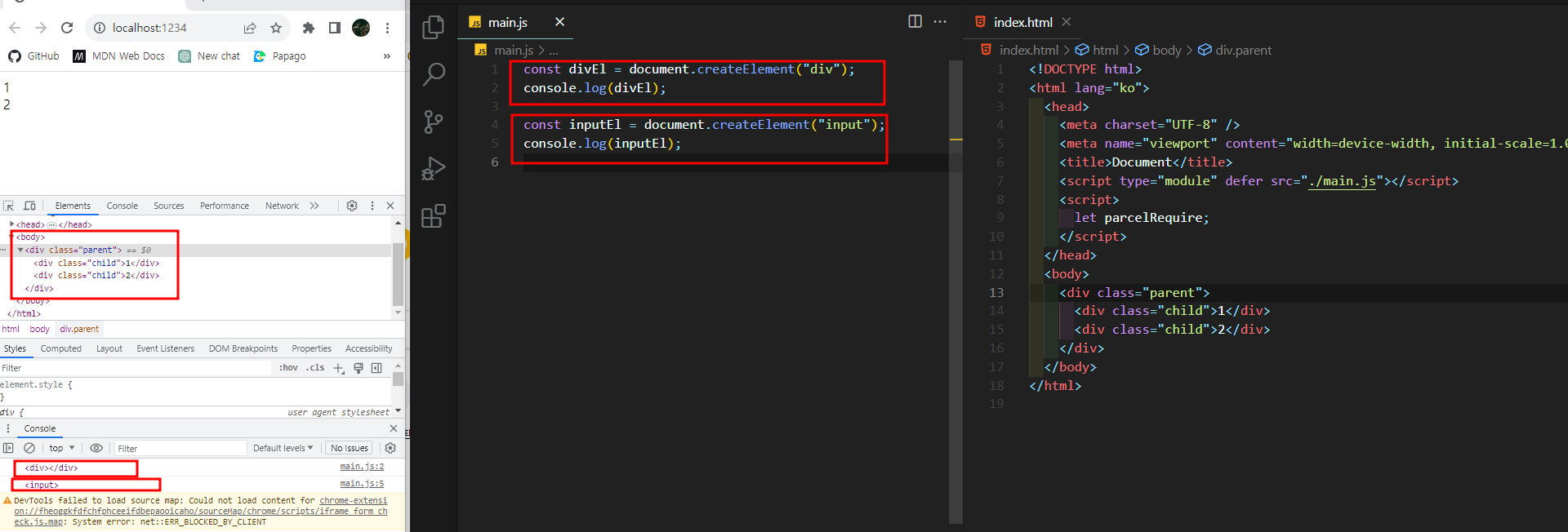
개발자 모드에서 HTML을 확인하면 생성된 태그들이 없는 것을 볼 수 있다 즉, 메모리상으로만 존재하는 요소
2. prepend / append
- prepend : Node를 요소의 첫번째 자식으로 삽입한다.
- append : Node를 요소의 마지막 자식으로 삽입한다.
const parentEl = document.querySelector(".parent");
const el = document.createElement("div");
el.textContent = "안녕";
parentEl.prepend(new Comment("주석"));
parentEl.append(el);
parentEl.append("text");

// 또는 인수를 여러개 사용할 수 있기 때문에
// 아래와 같이 사용 가능
parentEl.append(el, "text");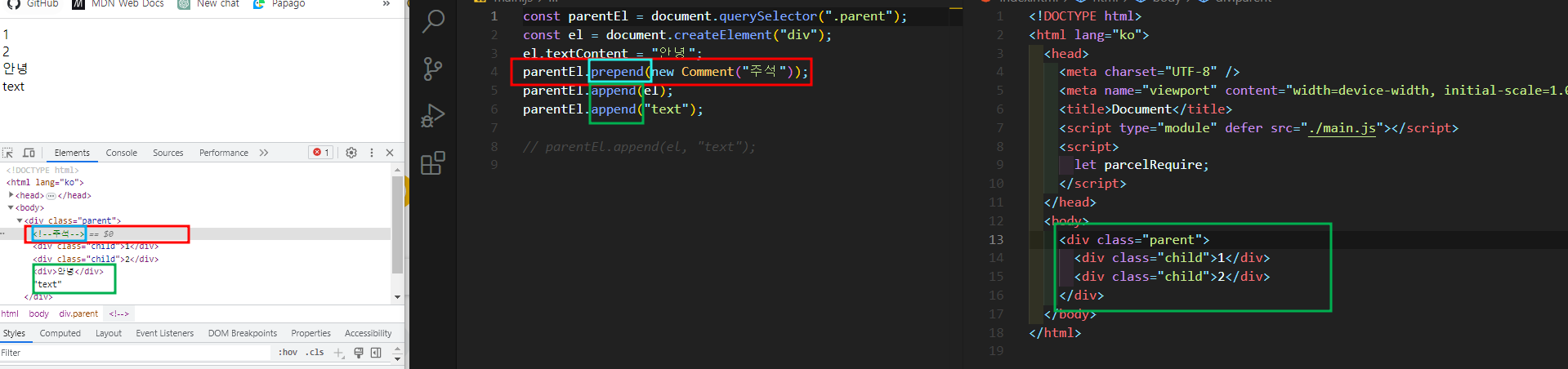
3. remove
- 요소를 제거한다.
const parentEl = document.querySelector(".parent");
const el = document.querySelector(".child");
el.remove();
4. insertAdjacentElement
- '대상 요소'의 지정한 위치에 '새로운 요소'를 삽입한다.
- 대상요소. insertAdjacentElement(위치, 새로운 요소)
위치 매개변수 값
- beforebegin: 해당 요소 이전에 삽입합니다.
- afterbegin: 해당 요소 내부의 첫 번째 자식으로 삽입합니다.
- beforeend: 해당 요소 내부의 마지막 자식으로 삽입합니다.
- afterend: 해당 요소 이후에 삽입합니다.
<!-- 위치값 설명 -->
<!-- beforebegin -->

<div class="target">

<!-- afterbegin -->

	Content!

<!-- beforeend -->

</div>
<!-- afterend -->
const childEl = document.querySelector(".child");
const newEl = document.createElement("span");
const newEl2 = document.createElement("span");
const newEl3 = document.createElement("span");
const newEl4 = document.createElement("span");
newEl.textContent = "안녕";
newEl2.textContent = "안녕2";
newEl3.textContent = "안녕3";
newEl4.textContent = "안녕4";
childEl.insertAdjacentElement("beforebegin", newEl);
childEl.insertAdjacentElement("beforeend", newEl2);
childEl.insertAdjacentElement("afterend", newEl3);
childEl.insertAdjacentElement("afterbegin", newEl4);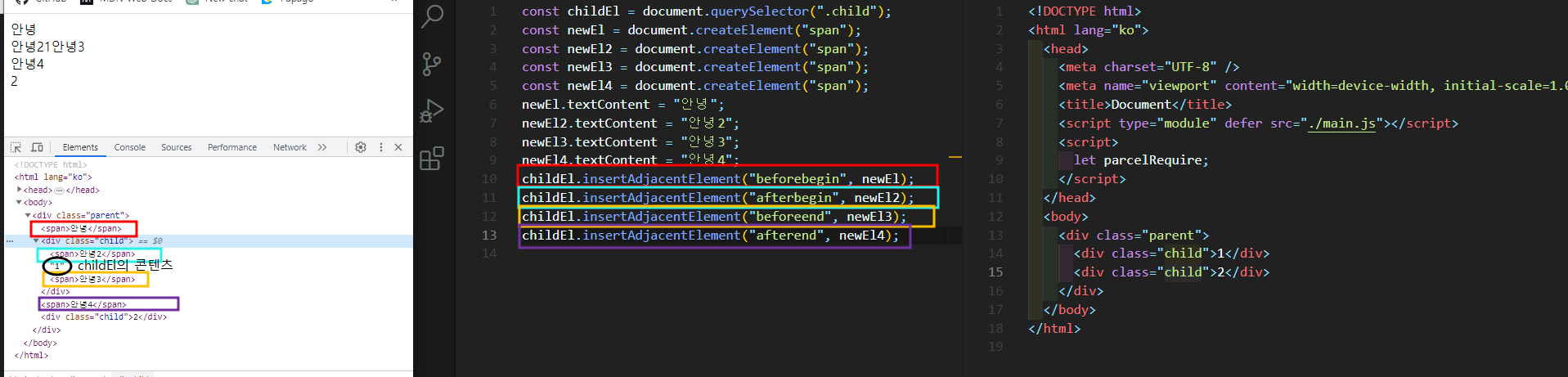
5. insertBefore
- Node에서 사용된다.
- '부모노드'의 자식인 '참조 노드'의 이전 형제로 '노드'를 삽입한다.
- 부모노드. insertBefore(노드, 참조노드)
const parentEl = document.querySelector(".parent");
const childEl = document.querySelector(".child");
const newEl = document.createElement("span");

newEl.textContent = "안녕";
parentEl.insertBefore(newEl, childEl);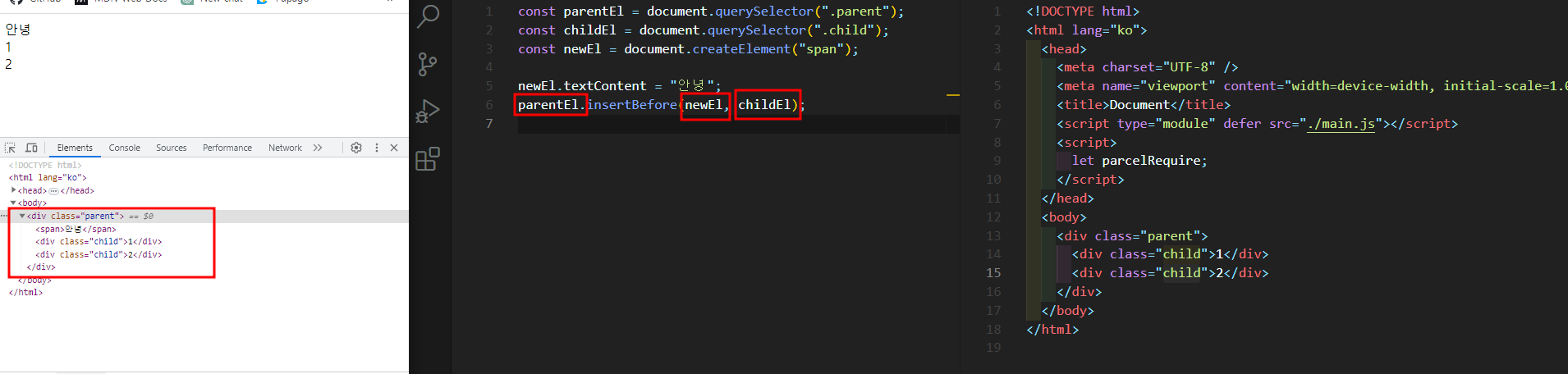
HTML요소가 하위 개념이기 때문에 사용하고 있으며 Node에서 사용가능하기 때문에 요소가 아닌 TEXT , 주석 등에서도 사용가능하다
6. contains
- '주어진 노드'가 '노드'의 자신을 포함한 후손인지 확인한다
- 노드. contains(주어진 노드)
const parentEl = document.querySelector(".parent");
const childEl = document.querySelector(".child");

console.log(parentEl.contains(childEl)); //true
console.log(document.body.contains(parentEl)); //true
console.log(document.body.contains(childEl)); //true
console.log(document.body.contains(document.body)); //true
console.log(parentEl.contains(parentEl)); //true

console.log(parentEl.contains(document.body)); // false
console.log(childEl.contains(document.body)); // false
HTML요소가 하위 개념이기 때문에 사용하고 있으며 Node에서 사용가능하다
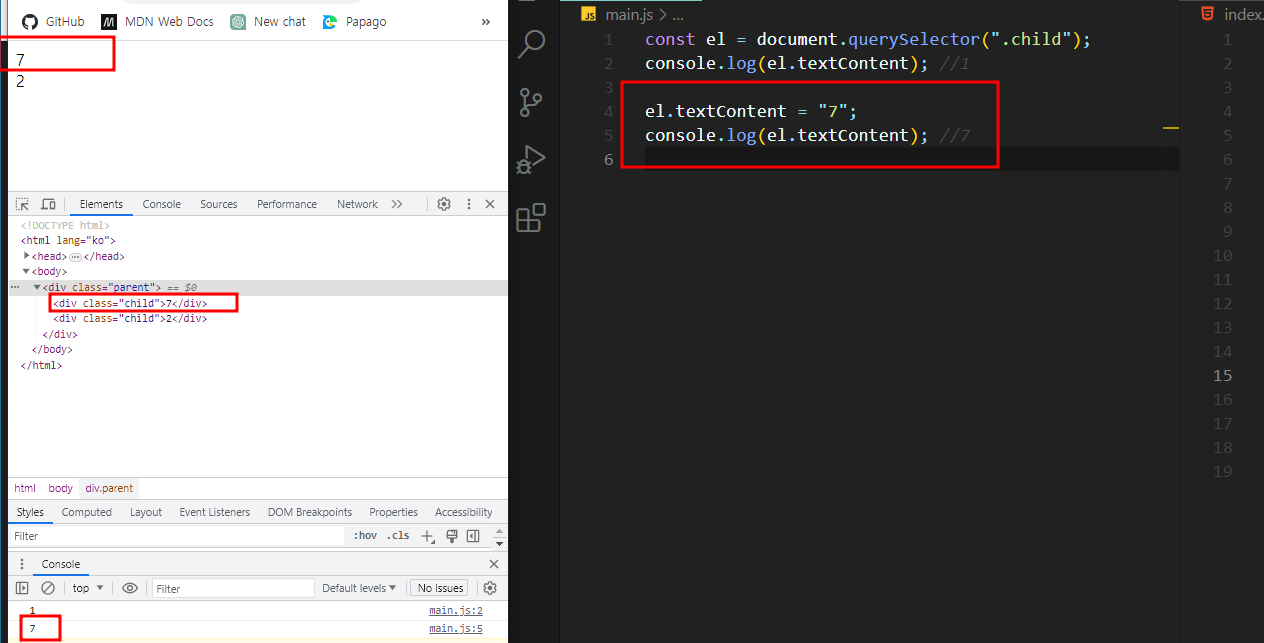
7. textContent
- 노드의 모든 텍스트를 얻거나 변경한다.
const el = document.querySelector(".child");
console.log(el.textContent); //1

el.textContent = "7";
console.log(el.textContent); //7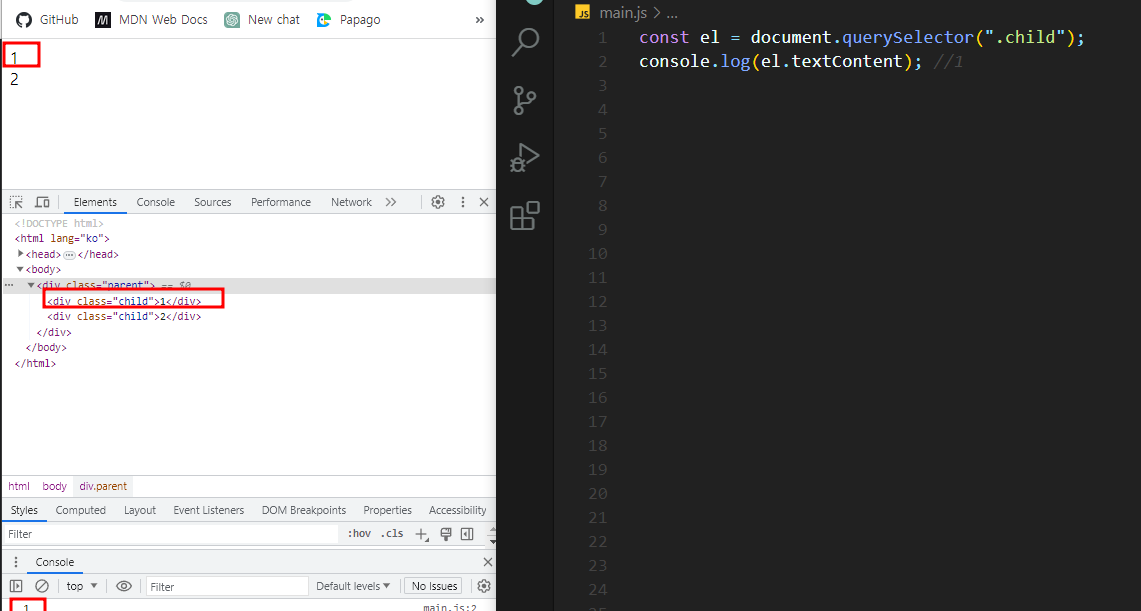
8. innerHTML
- 요소의 모든 HTML 내용을 하나의 문자로 얻거나, 새로운 HTML을 지정한다.
const el = document.querySelector(".child");
console.log(el.innerHTML);

el.innerHTML = "<span style="color: red;">안녕</span>";

el.innerHTML = /*html*/ `
<div style="border:4px solid ">
  <span style="color: red;">안녕</span>
  <span style="color: red;">안녕</span>
</div>
`;
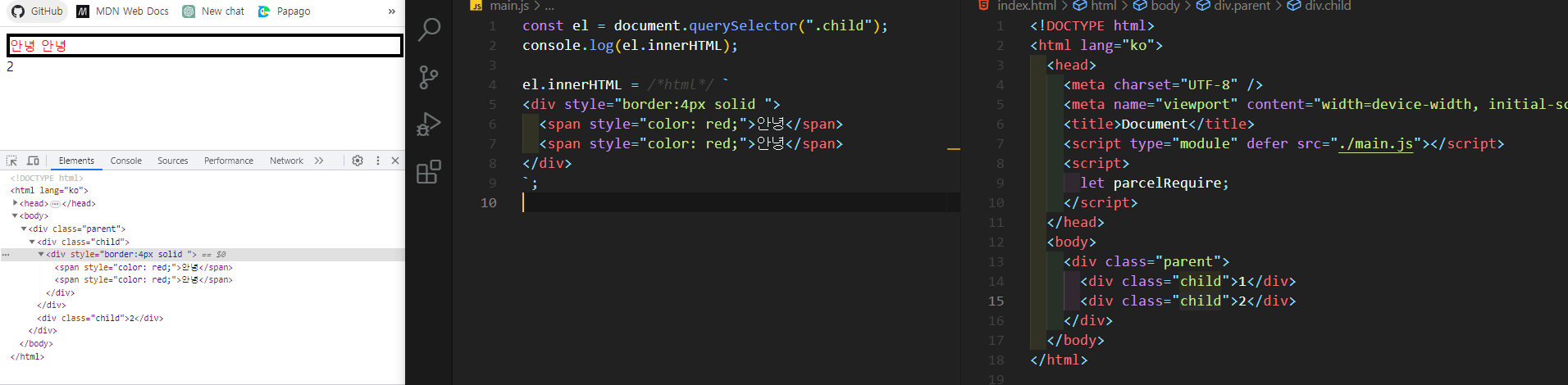
문자로 작성한 태그내용을 실제 HTML 구조문으로 변경해서 삽입해 준다. (textContent와의 차이점이다)
9. dataset
- 요소의 각 `data-` 속성 값을 얻거나 지정한다.
const el = document.querySelector(".child");
const str = "안녕하세용";
const obj = { a: 1, b: 2 };

// data- 속성의 이름과 값 지정해주기
el.dataset.helloWorld = str;
el.dataset.object = JSON.stringify(obj);

// data- 속성 가져오기

console.log(el.dataset.helloWorld);
console.log(el.dataset.object);
console.log(JSON.parse(el.dataset.object));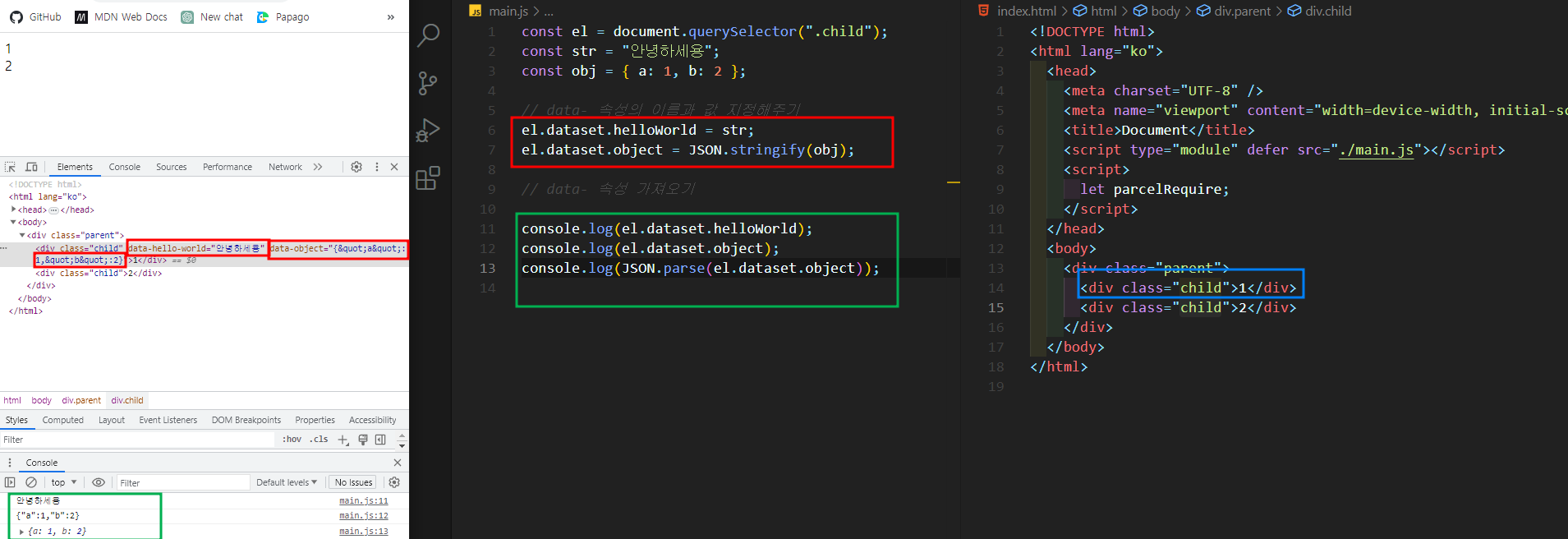
JSON 형식 객체를 HTML 속성 값으로 넣을 경우, JSON 문자열의 일부 문자들이 HTML 문자로 이스케이프(escape) 되어 보이는 현상이 발생
이는 HTML 엔티티로 변환되어 나타나며 카멜케이스방법으로 작성한 이름도 ' - ' 기호를 통해 나오는 것을 확인할 수 있다.
10. tagName
- 요소의 태그 이름을 반환한다.
const parentEl = document.querySelector(".parent");
const childEl = document.querySelector(".child");
const el = document.createElement("span");

console.log(parentEl.tagName);// DIV
console.log(childEl.tagName);// DIV
console.log(el.tagName);// SPAN
console.log(document.body.tagName); //BODY
대문자로 나오기 때문에 tagNmae을 통해 다른 태그와 비교를 해야 하는 경우는 대문자로 사용을 해야 한다.
11. id
- 요소의 'id' 속성 값을 얻거나 지정한다.
const el = document.querySelector(".child");
console.log(el.id); //

el.id = "child1";
console.log(el.id);
console.log(el);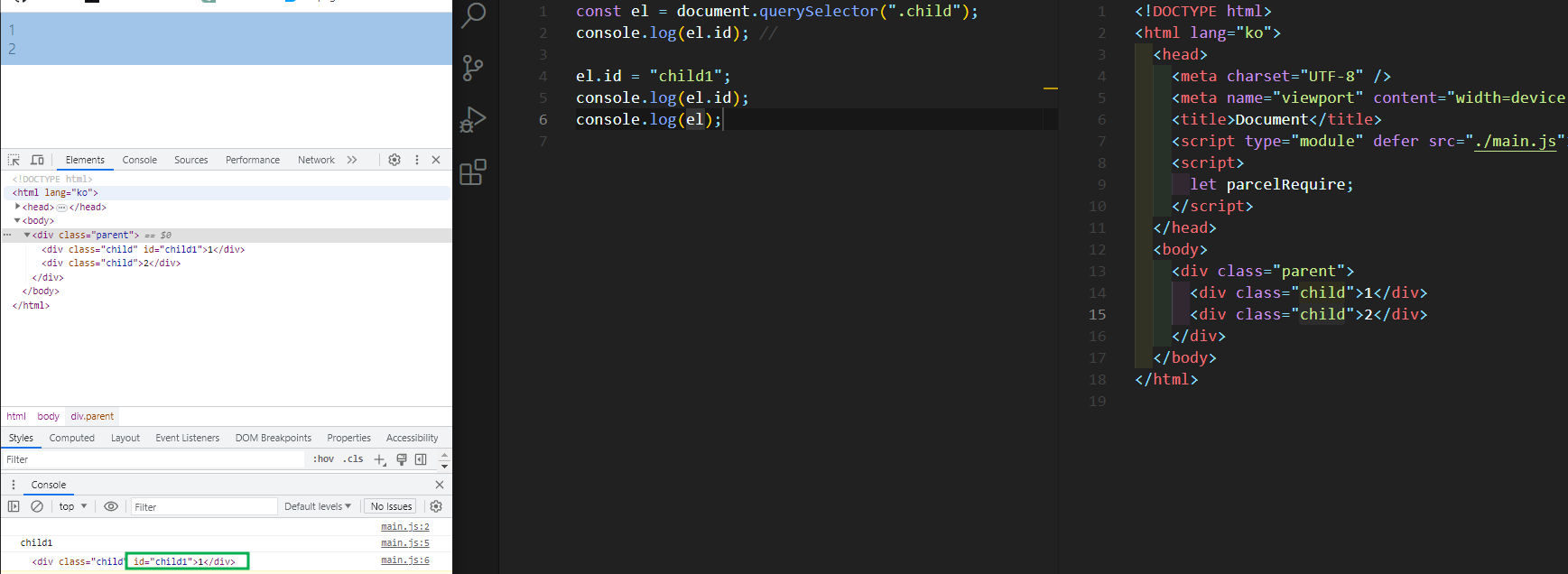
12. className
- 요소의 'class' 속성 값을 얻거나 지정한다.
const el = document.querySelector(".child");
console.log(el.className);

el.className += "childe1 active";
console.log(el.className);
console.log(el);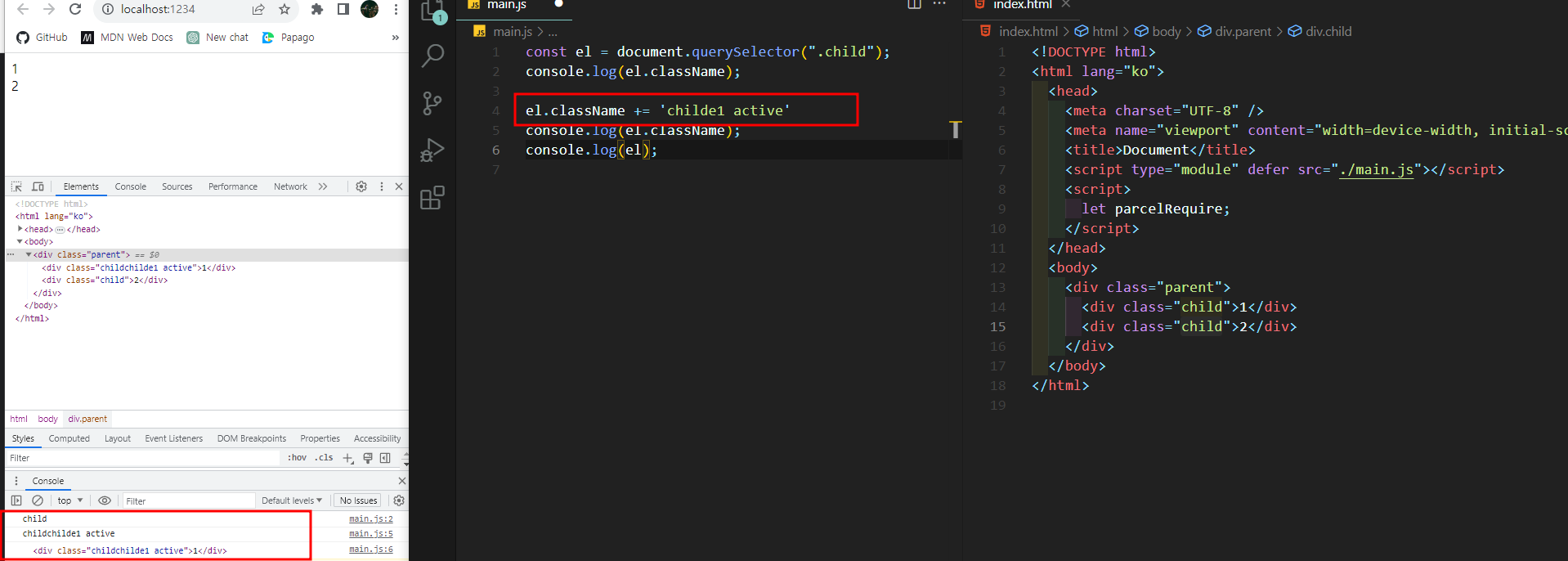
띄어쓰기를 통해 다수의 클래스이름을 추가하거나 할 수 있지만 문자열로 반환되는 것으로 핸들링이 복잡도가 있을 수 있기 때문에 단순하게 클래스명을 확인할 때만 주로 사용된다.
13. classList
- 요소의 'class' 속성 값을 제어한다.
주요 메서드
- add : 새로운 값을 추가
- remove : 기존 값을 제고
- toggle : 값을 토굴
- contains : 값을 확인
- replace : 지정한 클래스 이름을 다른 클래스 이름으로 교체
const el = document.querySelector(".child");

el.classList.add("active");
console.log(el.classList.contains("active")); //ture

el.classList.remove("active");
console.log(el.classList.contains("active")); //false

el.addEventListener("click", () => {
  el.classList.toggle("active");
  console.log(el.classList.contains("active"));
});

el.classList.add("test");
console.log(el.className); //child test
el.classList.replace("test", "test2");
console.log(el.className); //child test2
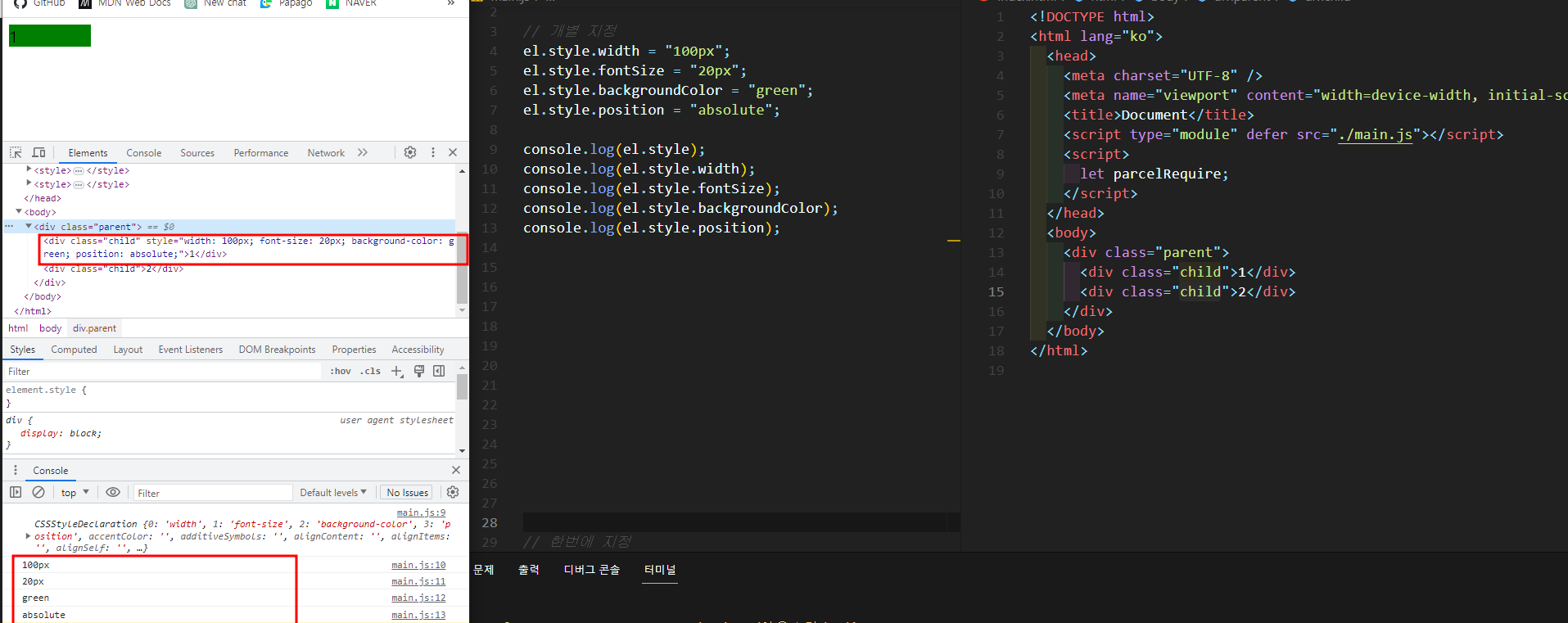
14. style
- 요소의 'style' 속성(인라인 스타일)의 CSS 속성 값을 얻거나 지정한다.
const el = document.querySelector(".child");


// 아래 이미지 참조(sytle 개별지정 전)
console.log(el.style); // 해당하는요소에 지정할 수 있는 style확인가능, 객체 데이터로 반환
console.log(el.style.width);
console.log(el.style.fontSize);
console.log(el.style.backgroundColor);
console.log(el.style.position);


// 개별 지정
el.style.width = "100px";
el.style.fontSize = "20px";
el.style.backgroundColor = "green";
el.style.position = "absolute";

console.log(el.style);
console.log(el.style.width);
console.log(el.style.fontSize);
console.log(el.style.backgroundColor);
console.log(el.style.position);
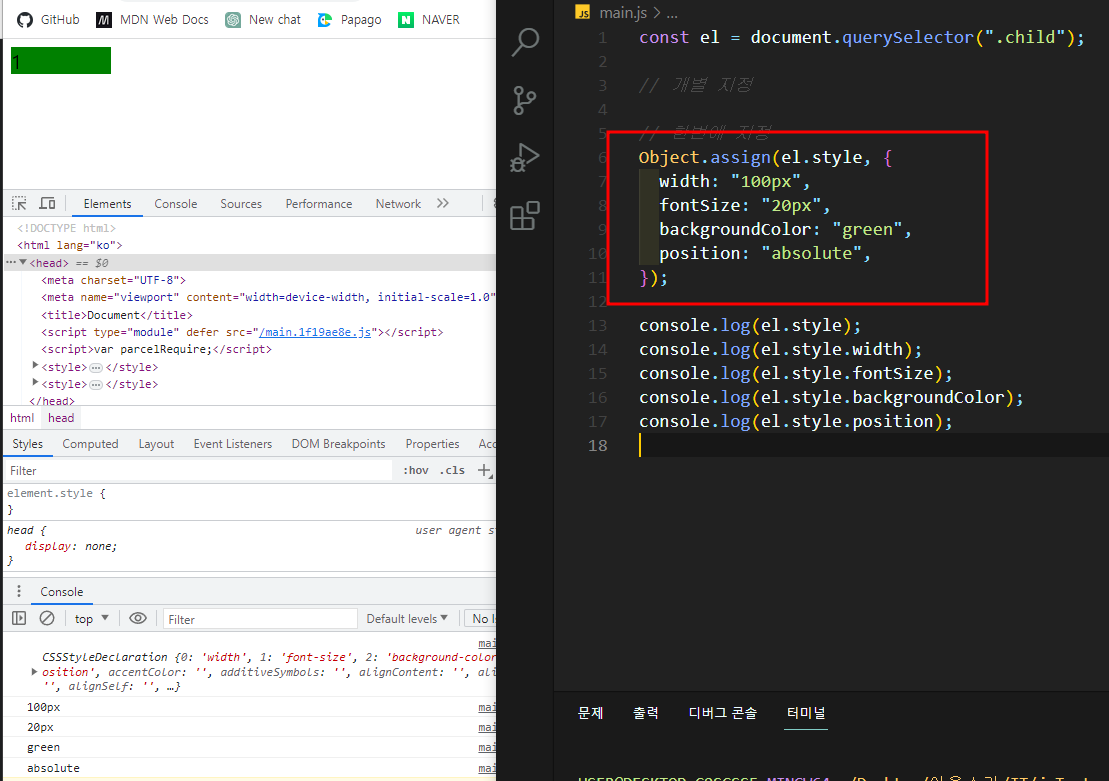
// assing메서드를 사용한 sytle 한번에 지정
Object.assign(el.style, {
  width: "100px",
  fontSize: "20px",
  backgroundColor: "green",
  position: "absolute",
});

console.log(el.style);
console.log(el.style.width);
console.log(el.style.fontSize);
console.log(el.style.backgroundColor);
console.log(el.style.position);
1 ~ 2개의 style을 작성할 때는 개별지정을 하면 되지만 여러 개일 경우 assign메서드를 활용하여 작성하는 게 유용하다
15. getComputedStyle
- 요소에 적용된 스타일 객체를 반환한다.
- window 객체에서 사용이 가능하다
const el = document.querySelector(".child");
const styles = window.getComputedStyle(el);
console.log(styles.width);
console.log(styles.fontSize);
console.log(styles.backgroundColor);
console.log(styles.position);
console.log(styles);
요소에서 사용하는 sytle확인은 인라인스타일만 가능하지만 window 메서드를 활용하여 스타일을 확인하고 싶은 요소를 매개변수로 전달해 주면 요소에서 실제로 적용된 CSS 내용만 객체 데이터로 반환하고 이를 토대로 JS에서 알아낼 수 있다.
16. getAttribute / setAttribute
- getAttribute : 요소에서 특정 속성 값을 얻는다.
- setAttribute : 요소에서 특정 속성 값을 지정한다.
- 속성이라는 같은 의미의 사용이지만 HTML -> Attribute, JS, CSS -> Property라고 얘기한다.
const el = document.querySelector(".child");

el.setAttribute("title", "안녕하세용");
console.log(el.getAttribute("title"));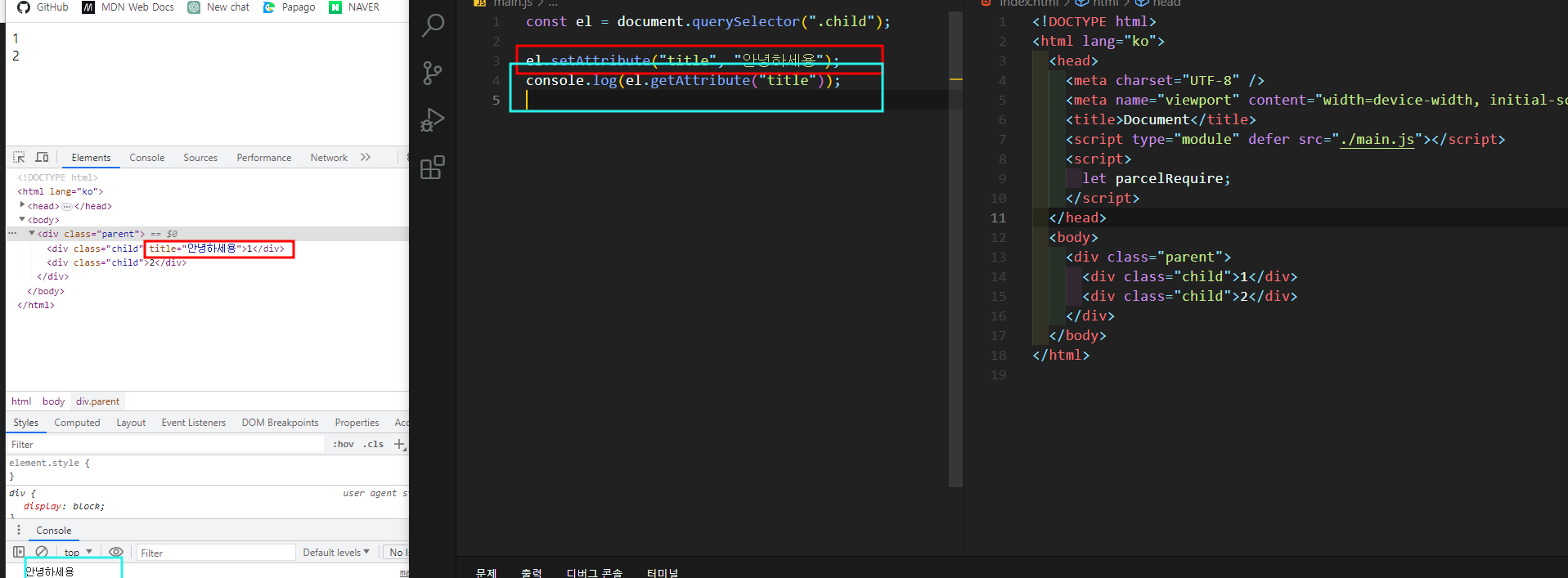
17. hesAttribute / removeAttribute
- hesAttribute : 요소에서 특정 속성을 확인한다.
- removeAttribute : 요소에서 특정 속성을 제거한다.
const el = document.querySelector(".child");

console.log(el.hasAttribute("class")); // true

el.removeAttribute("class");
console.log(el.hasAttribute("class")); // false

console.log(el); //<div>1</div>
'Javascript' 카테고리의 다른 글
| [javascript] Events(추가, 제거, 이벤트객체) (0) | 2023.09.07 |
|---|---|
| [javascript] 브라우저 화면, 요소의 크기 또는 좌표 확인하기 (0) | 2023.08.21 |
| [javascript] DOM 검색 및 탐색 (0) | 2023.08.21 |
| [javascript] DOM(Document Object Model) (0) | 2023.08.20 |
| [javascript] 동기 / 비동기 (Resolve, Reject, error 핸들링) (0) | 2023.08.20 |


